
How to Backup Zimbra Mailbox – Complete Guide!
Summary: In this article, you will learn how to backup Zimbra mailbox with attachments of your Zimbra account. You will learn different methods to create and take a backup of Zimbra mail server and even how to restore Zimbra backup easily, simple steps are covered. A trusted Email backup software is an another solution to backup Zimbra mailbox automatically without following any steps or technical process. Lets read more below about how to take backup of Zimbra mail account and then restore back effectively.
What is Zimbra and Zimbra Backup
Finding a working and effective way to download backup of Zimbra mailbox? Then yes, this is the right place! This guide involves and covered up all information required to create or take a backup of Zimbra mailbox. Numbers of users these days are facing problem and bothered about data-safety, productivity
There are many people who face the same problem and concerned about the safety of data in the rapidly growing digital world because Zimbra Cloud, desktop, and mail server have become an essential platform to manage emails, contacts, and calendar.
In case of open-source platforms, there are two famous email servers that are adopted by people and those are Zimbra mail server and ZCS (Zimbra Collaboration Suite). But because of security and data corruption problems, users like to take a backup of Zimbra email server in various file formats as per their convenience in ease of access.
How to Backup Zimbra Mailbox Via Zimbra Desktop and Admin?
Answer: Solution is, if you want to create a backup of a mailbox as a Zimbra user, all you need to do is to go to the preferences tab, click on import/export tab, select accounts or folders and then export the content as a TGZ file. In order for an administrator to backup any individual mailbox, he/she should execute the following command as the zimbra user: zmmailbox getRestURL.
A best method for backing up Zimbra depends on who you are and what needs to be protected. An end-user can backup his/her own account via webmail or desktop client. An administrator can backup any mailbox via command line or even the entire deployment with server backup.
Best Method to Backup Zimba Cloud Mail with KDETools Zimbra Migration
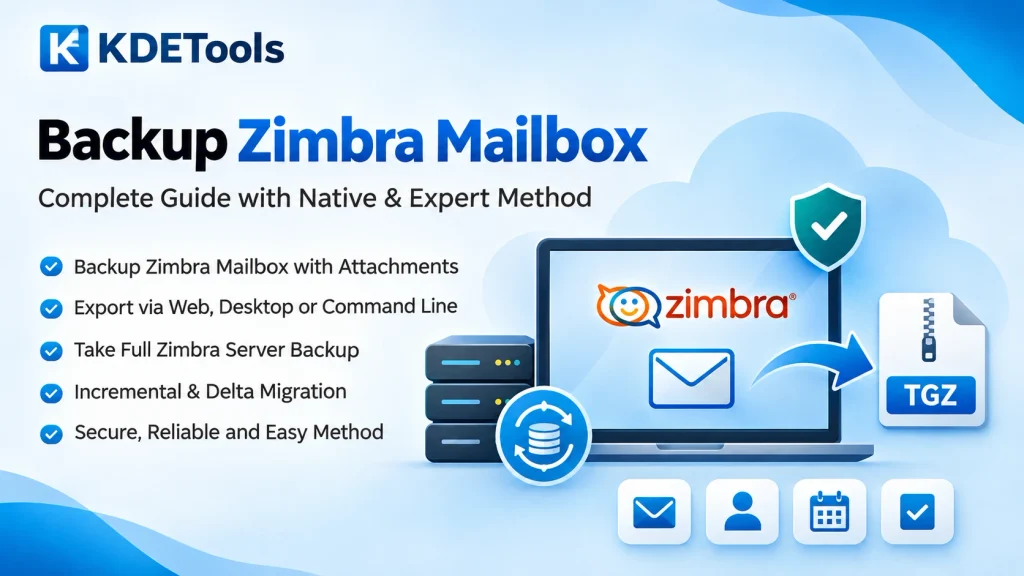
If you want to back up single Zimbra Mailbox or multiple several Zimbra accounts or cloud data, you can use expert’s choice KDETools Zimbra email migration, which is a SAAS-Automated tool that provides a direct export facility. This Zimbra account migration tool has options for selecting folders and filters, including date range, country date-time, sender, receiver, subject and so on.
KDETools‘ software also provides an incremental backup facility and delta zimbra migration so the old backup would be migrated successfully without downtime. This way securely backup and migrate Zimbra mails and later on sync all new emails and data which did not migrate during old Zimbra backup migration.

Use Native Method to Download Zimbra Mail Data via Web
Read here about the native solution to get Zimbra backup download via Web – A built in Zimbra export is an effective way to start with when you require a copy of your account or the required folders. Menu names vary in different versions. Zimbra web application documentation will help you in finding the required export/import features.
- Login to your Zimbra account webmail.
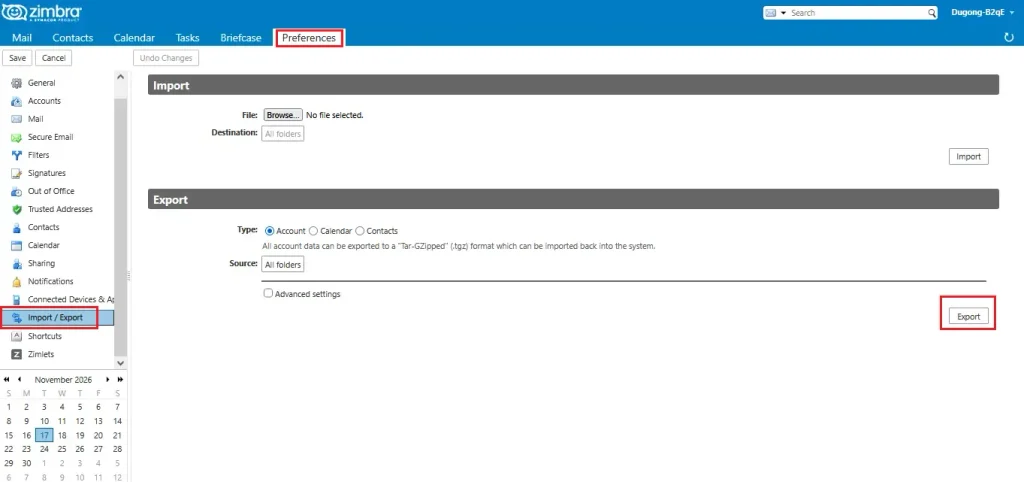
- Go to Preferences and choose Import/Export option. In certain versions, go to Settings and then to Accounts and then select that required account for backup.
- In the export tab, select account or the folders data you wish to export.
- Go to Advanced settings and select the data type, date range or search filter, as required.
- Choose Export and download TGZ file.
- Make sure that TGZ file (Zimbra archive) has been downloaded successfully and saved in a preferred drive or location.
Exporting copies the selected data and does not delete it from the account. The large mailboxes can time out in the browser and in such cases the administrator needs to use the command line export mentioned below. If you wish to use the TGZ file in any other application, you can use a Zimbra TGZ Converter to convert it to a specific or desired format from available list of options.
Second Method
Native Method to Download Zimbra Mail Data via Desktop
There is an in-built function that enables users to export Zimbra mailbox into TGZ file format. Users should follow procedure outlined below to restore their information in case it is lost.
Users are advised to use this method to control their installed desktop version of Zimbra using the export option. Note that menu names and options differ in various Zimbra versions.
First – Simply open your Zimbra Desktop and select Preferences.
Second – Select in left pane “Import/Export” and then select Account or folders required to make/create backup of Zimbra account.
Third – You can go to Advanced settings in case a specific data or a date range required.
Fourth – You need to click on “Export” and you get the backup into the drive or external drive you select to export Zimbra mailbox data.
- First verify that the file exists prior to shutting down the client software.
- Maintain and keep your original account until you have verified that the backup file is saved.
It’s a free method to take Zimbra mailbox backup in your hard disk. But usually, most of the users require an additional data exportation option from Zimbra which is not available on Zimbra side.
Export Zimbra Mailbox Backup Using CMD Command Line
Zimbra administrators can utilize zmmailbox for extracting a single mailbox in TGZ file format. It’s not Zimbra server backup; it’s a mailbox export process. Verify command syntax and permission according to your Zimbra version.
/opt/zimbra/bin/zmmailbox -z -m user@example.com -t 0 getRestURL "//?fmt=tgz" > /backup/user.tgz
Note: this command line is a single one so use completely.
Change user@example.com with email id of the zimbra user you need to backup and /backup/user.tgz with the file location on destination. This -t 0 parameter specifies no timeout; it doesn’t override the storage/server limits. Ensure that there is enough storage space on destination and the process completes.
How to Backup Zimbra Mailbox based Zimbra Server
A server backup safeguards Zimbra installation, not just one user’s mailbox. So you need to setup according Zimbra version, recovery and storage requirements.
- Go to Zimbra Administrator’s Guidance for backup process compatible with your Zimbra version and edition.
- Setup up supported backup methods, that includes retention period and suitable appropriate location for backup.
- Track backup process and ensure it completes successfully.
- Maintain a copy of the backup off the Zimbra server safely first, in case of any failure of the server or storage affect and throw unwanted issues.
- Now you need to check and test restoration backup so to make sure it works for recovery.
Advice: Do not use mailbox TGZ export as a server backup solution. Furthermore, avoid using old recommendations to stop Zimbra and make a copy of /opt/zimbra folder without verifying if it compatible to your Zimbra version. Zimbra categorizes/labels its old Open Source “stop and copy” backup process as an archived and unsupported one.
Summary:
Zimbra mail backup proves to be a crucial move for facilitating transition of the working environment. Manual as well as SAAS Automated solutions by KDETools can provide great help in improving performance. Using free trial version of our product will allow users to migrate a selection of items from each folder, which will help get an idea about its performance. In case of any questions or concerns, you can contact our support team at any time.
Also read:
- How to easily Migrate Zimbra Emails to Office 365?
- How to Import Zimbra to Office 365?

One Comment
Comments are closed.