
How to Import, Load and Open OST File on Outlook
Overview: OST files save mailbox data on the local machine while using Cached Exchange Mode in Microsoft Outlook. However, OST files are associated with the particular Outlook profile and system and thus are not easy to open and use in case of problems with system operation, file corruption, or switching computers. Conversion of the OST file into a PST format that is more universal and can be used in different Outlook versions is the best way to get access to the mailbox information. In case if the initial OST cannot be used with the particular Outlook profile anymore, the recovered information will have to be saved into a PST file to be further accessed via the PST format.
That is where the KDETools’ converter tool for OST to PST comes handy. It allows you to scan non-accessible or orphaned OST files, view readable mailbox information, and then extract the information needed and save into PST so that the file could be opened or imported into Outlook. Let’s see how to open OST file on Outlook and do this in the following steps.
Recommended Method to Open OST file on Outlook
OST Viewer allows viewing emails without Outlook. This tool/software can be used by individuals, administrators, data-recovery firms, government, small business, corporate entities and enterprises. Some of its prominent features are:
- Read corrupt/lost/deleted/offline OST file fast
- Can add any number of OST files
- View complete body of an email with all the attached files and information like, contacts, drafts, calendar entries, task lists and much more
- Maintain original formatting and layout of the emails
Steps to read and Open OST Files Easily
Below are some steps that can be used to open and read OST file data. These include:
- Download and run OST viewer tool software.
- Click select File to load OST files from your pc.
- Either use Browse to load OST files or use Search to find all OST files in your pc/laptop.
- After loading the files, select the mailbox folder and then the particular emails to view their data.
If you wish to convert the data into other formats, then get the licensed OST converter tool that will allow you to save data in PST, PDF, EML, HTML, and other formats.
Main Reasons to Load and Open OST Files into Outlook
Here, following are some of main reasons that can prompt you to import and open OST emails to Microsoft Outlook.
- Microsoft Exchange Server crash: There are possibilities of Exchange server crash and fails, and it cause synchronize email files on Outlook and wont work properly. Then users need to import OST file on Outlook manually to access mailbox items data.
- Switching to new or different email client: In case you switching email service provider or wish to use a different email client other than Microsoft Outlook, you can change the OST file into a PST file and import all email data into your favorite email client. You can even learn how to export Outlook 365 emails to your PC.
- Recover OST file deleted items: If, by mistake, you delete any email or mailbox items in your Microsoft Outlook account, then you will be able to retrieve it back using an older version of the OST file. Learn about restoring deleted items from an OST file.
- Switching to a New PC and OS: Getting OST emails access on Outlook is important when moving to a new or different PC or laptop or when you reinstall Windows OS to gain access to email mailbox data.
- OST mailbox corruption: It is possible that mailbox data on Microsoft Outlook become corrupt and inaccessible due to hardware failures, software errors, malware or virus attacks. Such a problem can cause Microsoft Outlook to throw and display an error message ‘Outlook data file cannot be accessed’ or ‘Outlook OST cannot be open’. In such cases, getting open OST email files can help you to recover OST file mailbox data.
How to Get OST File Location on a PC or Laptop?
Before importing OST email to Microsoft Outlook, users must first search and get the email file location path on PC. This article explained well about how to find the location of OST file on PC.
First – Go to Control Panel and then click on Mail Applet – check screenshot
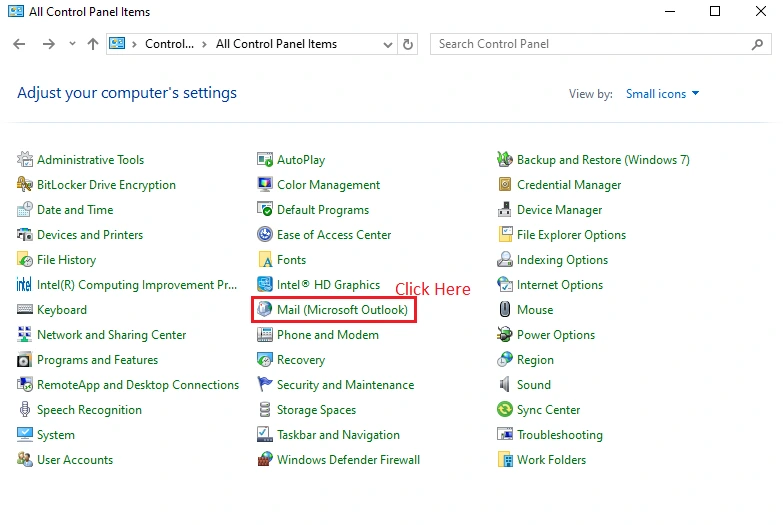
To get this above screen – click on Start button – write Control Panel
Clicking on Mail (Microsoft Outlook) and then click on ‘Data Files‘
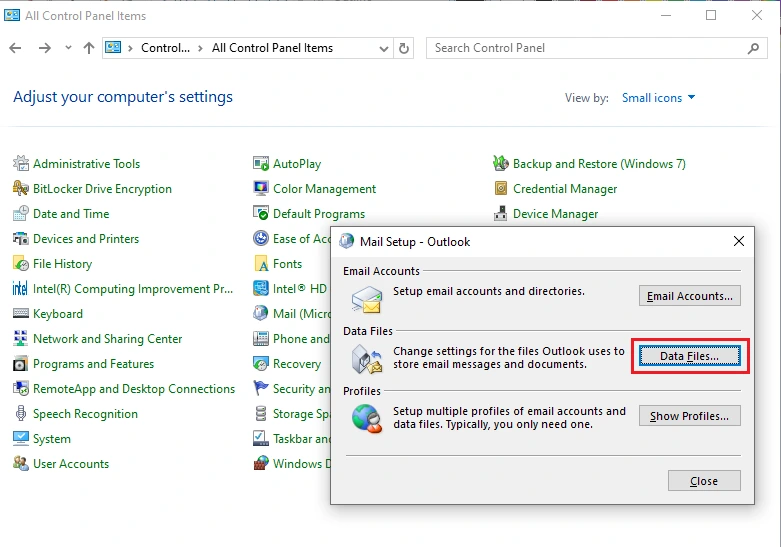
Second – Locate for offline storage table OST file
Via ‘Data Files‘ box – it will show you a list of email data files associated with MS Outlook or single file if only one account associated with Outlook.
Now which OST file with Outlook program associated it and click on ‘Open File Location‘.
Here you get the OST file inside folder it opens.
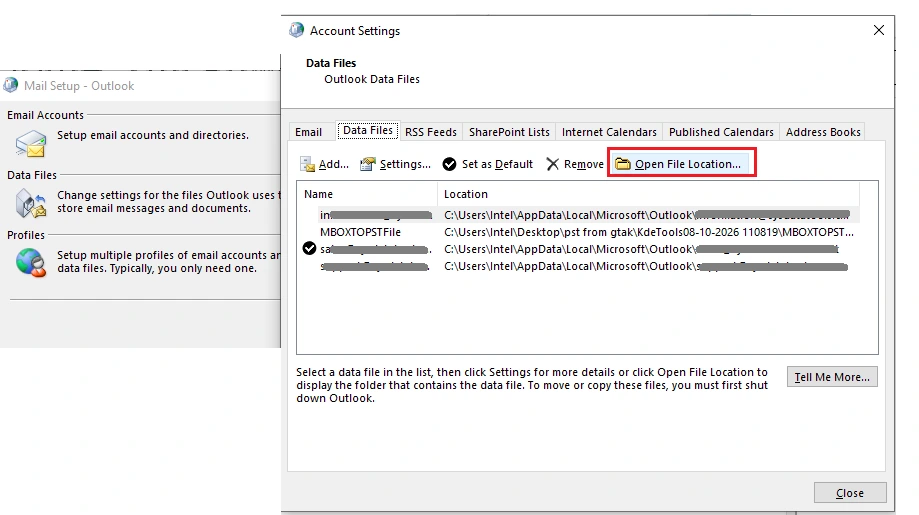
Apart these steps – one can directly navigate and find OST file location using the exact path mentioned below:

OST File Cannot be Open by Outlook Directly – Why?
The OST file allows you to work offline as well as access the information in your mailbox without connecting to the Exchange server. But you cannot directly open the OST file in Microsoft Outlook. The reasons are as follows:
Profile and mailbox connection: The OST file is a synchronized cache which is created and maintained by the Outlook profile and account that has created the OST file. The Outlook application always utilizes this OST file as long as the profile is active.
No Standard stand-alone import process: There are no such stand-alone or manual process to import OST file on Outlook program and Open Outlook data File or Import Outlook data File in Outlook arbitrary OST file.
Orphaned OST Mechanism: When OST file connection is lost and profile is deleted and lost, then just copying and renaming OST file will not make it standalone or re-usable again. It is better to retrieve data from OST file and readable content and save the data into PST format.
So, in order to access the content of the OST file, you can use the techniques mentioned in the next section.
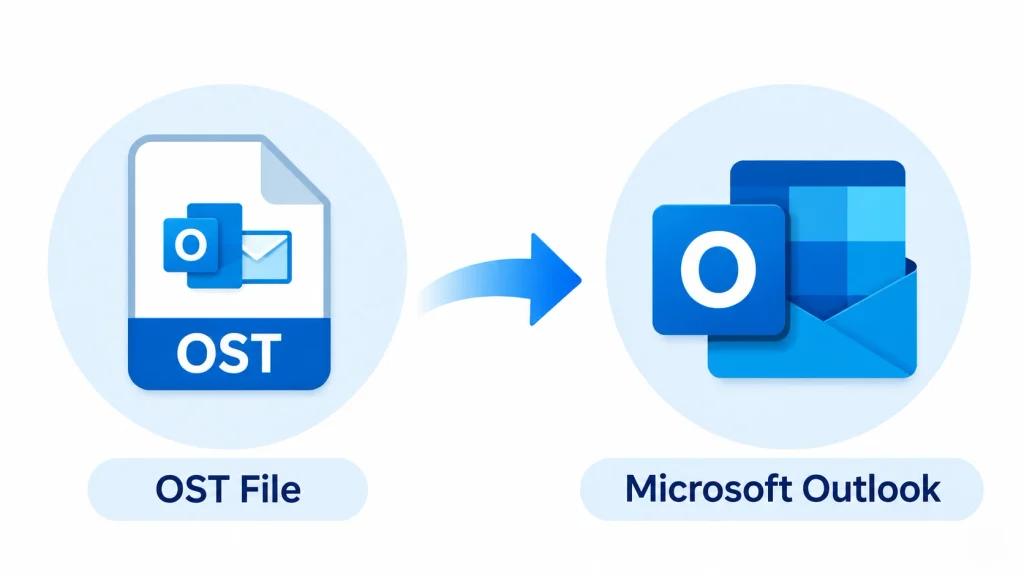
Two Methods to Restore OST File Data on Outlook
Outlook does not have a standard Open or Import function to attach any random OST file. You should select the method based on whether the original mailbox exists or not.
| Scenario | Recommended Approach | Reason |
|---|---|---|
| Microsoft 365/Exchange Account still active | Add profile on Outlook, and let Outlook create a new OST for synchronization. | Server mailbox stays the principal source |
| Old OST might have unlinked local items in it | Preserve old OST before rebuild to restore necessary local data individually. | Creation of new OST retrieves all server items but doesn’t restore those available only in the old OST file. |
| Orphaned OST is copied from some other machine or is linked to the removed profile | Recover usable items from the OST to PST format and then open it in Outlook. | PST is a portable Outlook data-file format meant for standalone use. |
| Destination can either be Microsoft 365 or Exchange | Use direct OST migration when necessary instead of using the PST format. | This will minimize handling where the destination is a live mailbox. |
Process: Convert OST, Verify PST, and Open It in Outlook
- Create a copy of the OST file without making any changes to the source.
- Use Microsoft OST to PST converter and scan the OST file for a preview of the required folders.
- Export a sample during the free trial and then check the export report.
- Open the converted PST file and check the Inbox, Sent Items, Contacts, Calendar, and attachments.
- Validate and then proceed with the entire export process to keep the PST file open as another data file or import folders into the destination mailbox.
Open a PST File or Import Its Data?
| Operation | Suitable for | Outcome |
|---|---|---|
| With ‘Open Outlook Data File’ | Checking or retaining recovered data separately. | Outlook displays the PST as a separate data file. |
| With ‘Import from another program or file’ | Moving recovered items into an existing mailbox or Outlook folders. | Selected PST items are copied to the chosen destination. |
Working with Classic Outlook and New Outlook
Menus and PST features are various in Classic Outlook and New Outlook versions and can vary from one update to another in Microsoft. Current Microsoft interface should be applied for the Outlook version installed in the PC. Direct attaching or copying OST file or placing OST file into app data local path its not a valid option to open OST file on Outlook.
Check After Import
- Compare expected folder names with exported ones.
- Check email messages with different dates and attachments.
- Check contacts and calendar entries separately.
- Look through skipped and failed items in the KDETools’ conversion log file.
- Check that the proper Outlook profile and folders were used.
How to Import OST Files on Outlook?
In order to bring the data stored in the OST file to your Outlook, you need to first convert your mailbox to a PST file which is accessible by the Outlook application, or restore the OST to PST when your profile fails to open it.
First Approach: Using Microsoft Outlook Import/Export Wizard.
Follow these steps to change or export OST email file to PST format on Outlook via Import/Export Wizard
Get it working using Classic Outlook for Windows, one can import/export email, contact, or calendaring information to and from a .pst data file using the built-in Outlook Import/Export Wizard feature.
First – Steps to Launch the Wizard
- Start Classic Outlook.
- Choose File located at the top left of the window.
- Then select Open & Export > Import/Export
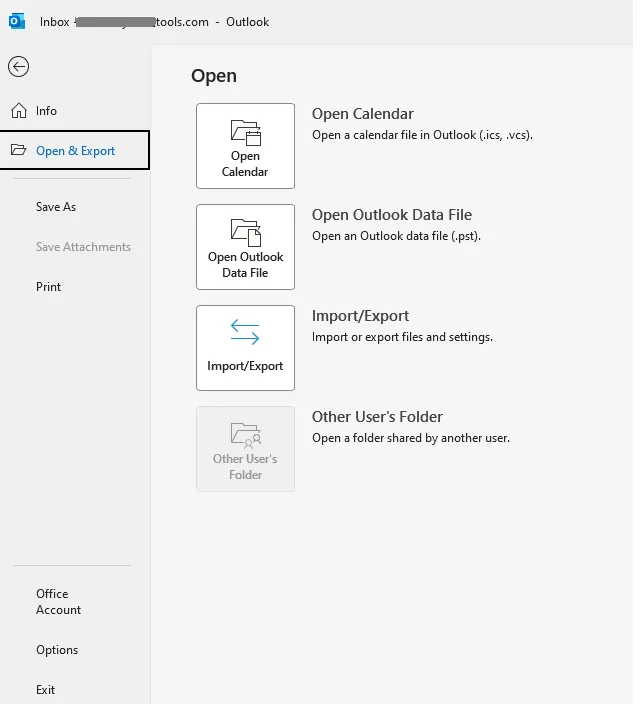
Second – Choose Outlook PST as export
- On – Import/Export wizard, choose “Export to a file” and click “Next”.
- Now select “Outlook Data File (.pst)” as the file format for exporting and click “Next”
- Select the folder or mailbox that you wish to export and click on the “Next” button.
- Choose the destination folder where the new PST file will be saved and enter a name for it.
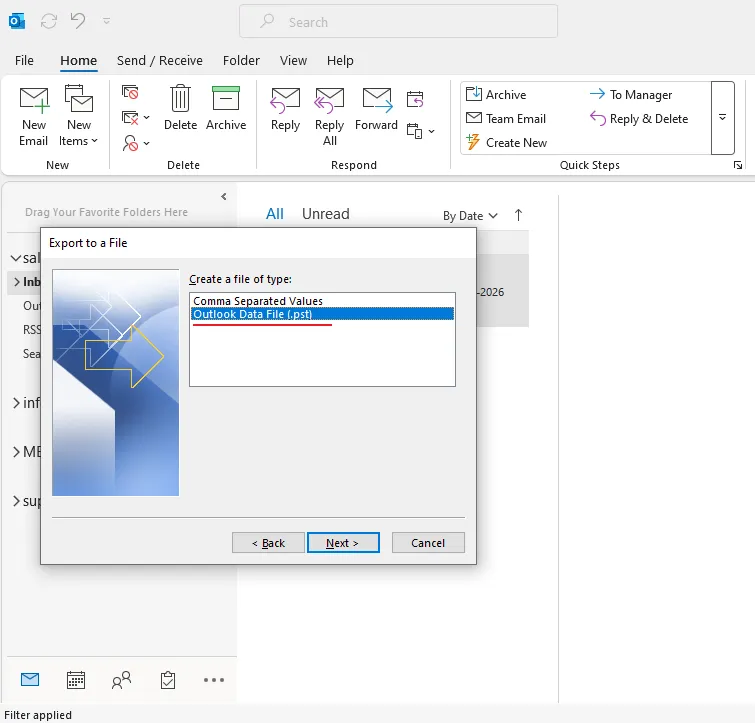
Third – Now select mailboxes elements to export
- Select – ‘Include subfolders’ to get export entire email items.
- Select – ‘Filter’ only for desired items.
- Now click on ‘Next‘
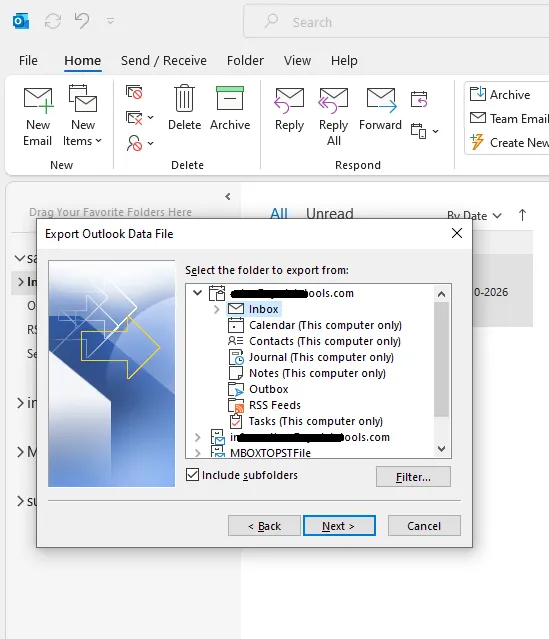
Fourth – Convert export OST email file into PST
- If you want to protect PST file, put a password and hit ‘OK‘
- Hit on ‘Finish‘ and it will start export process.
- Let the process complete itself and then click on ‘OK‘
Fifth – Now Import PST file on Outlook
- Launch Microsoft Outlook, and click the File tab situated at the top left side of the window.
- Click on Open & Export, and then click Import/Export from the drop-down list.
- Click on Import from another program or file, and then click Next.
- Select Outlook Data File (.pst) as the file type, and click Next.
- Navigate to the directory where the new PST file is stored, and click OK.
- Select the option Replace duplicates with items imported to avoid importing duplicate items.
- Select the destination folder or account for the import of data, and click Finish.
Following these steps, an OST file will be able to be converted to PST format and then imported to the email client to help access mailbox data.
While using the Import/Export wizard to convert OST to PST is rather a simple solution, there are some restrictions that need to be noted:
Loss of data: The Import/Export wizard will not be able to export all data from the OST file, which will lead to the loss of data during the conversion.
Restrictions due to OST file size: The conversion process may be affected by the size of the OST file. If the file is very large, the Import/Export wizard will be unable to convert it or will take much more time to process.
Corrupted OST file: In case the Outlook data file OST cannot be opened or is corrupted, the Import/Export wizard will be unable to convert it to PST.
Importing OST to Office 365: Import/Export wizard will not allow you to import emails and mailbox items from OST to Office 365 migration.
Authentication issues: The OST file used in Outlook does not use the PST-style password. If Outlook requires credentials, the issue with the mailbox/account authentication needs to be solved. If the file is protected by Windows or disk encryption, access to the required protection layer needs to be allowed first.
Second Approach – Recover inaccessible OST orphaned File and then Import on Outlook converting into PST
Why KDETools to recover OST emails from orphaned and inaccessible one? Here are some good reasons to know!
- User-friendly: The interface is easy-to-understand, thus making conversion of OST to PST feasible even for non-technical people. Moreover, you can also convert email items from OST to MSG, PDF, EML, EMLx, MBOX, HTML, MHT, etc.
- Big file size compatibility: KDETools’ converter is compatible with big file sizes as per the source data, disk speed, available resources and exported data. Test using relevant data and do not believe in a generic speed claim.
- Conservation: KDETools preserves the folder hierarchy and properties of the mailbox existing and readable in the source OST during the conversion process. Moreover, it is capable of detecting and recovering items which can still be retrieved.
- Choice options: You get the option to select what data to export from OST files, e.g. specific folders or certain time period, etc. Also exclude unnecessary folders.
- Special functionalities: KDETools is capable of processing encrypted OST files, previewing mailbox data in the OST, and saving the converted PST file to an accessible network.
Summary:
Various ways to read, access and import OST email files on Outlook were discussed in this article. One can make use of the in-built Import/Export Wizard or transfer/change OST file into a PST file and then simply import that PST file on Outlook.
But in case the OST file is corrupt or you cannot access the Exchange server, then you will need to use other manual or automated processes to import emails form OST into Outlook. An independent OST email file recovery process can be used to fix the readable mailbox data and convert it into PST file.
This is how you have learned both manual and automated ways to view or open OST data. Manual way will work only if the OST file is not corrupt. Moreover, you can repair, recover and convert the inaccessible or corrupt OST files to PST through the latest version of – KDETools converter for OST to PST.
Frequently Asked Questions
Is there any possibility to open OST file without using Outlook?
No, there is no direct way or command PowerShell will work to open OST file without Outlook or with Outlook. If you want to view the data of an OST file without Outlook, then an OST file viewer or converter is required.
Is conversion of OST to PST the only option for accessing it?
Yes, in case if the OST file has become orphaned, then only conversion of OST file to PST is possible to access it through Outlook.
Is there any chance of opening the damaged OST file in Outlook?
Yes, one can open the damaged OST file in Outlook after repairing it through ScanPST.exe or an OST file converter tool.
Can I Import OST on Outlook 2019?
Yes, this recommended tool supports to export OST emails into PST format and so its easy to Import OST on Outlook 2019.
Can I open OST file on Outlook 2016?
Yes, you can open OST file on Outlook 2016 version using the solution discussed above.
Is it possible to read and Open OST emails on Outlook 2021 and 2024?
Yes, Definitely Open OST emails on Outlook 2021 and 2024 using KDETools’ converter for OST files.
OST files contain crucial data of the Exchange Server. However, importing such files is not an easy task. There arise some issues for users in this regard. Therefore, here are some manual steps that can help in the process of importing OST files to Outlook. In reality, each manual process has some drawbacks; thus, a simpler solution should be chosen to import OST file into Outlook 2024, 2021, 2019, 2016, 2013, 2010, and 2007.

One Comment
Comments are closed.