USA/Canada: +1888-6100-834
  Rest World: +91-955-5514-144
  Whatsapp: +91-955-5514-144 | PARTNERS SERVICES CONTACT US ABOUT US
USA/Canada: +1888-6100-834 Rest World: +91-955-5514-144 Whatsapp: +91-955-5514-144 | PARTNERS SERVICES CONTACT US ABOUT US
Whatsapp: +91-955-5514-144 | PARTNERS SERVICES CONTACT US ABOUT US
USA/Canada: +1888-6100-834 Rest World: +91-955-5514-144 Whatsapp: +91-955-5514-144 | PARTNERS SERVICES CONTACT US ABOUT US
Manually Export Contacts from Outlook 2010
Step 1: Open Microsoft Outlook 2010. And select the File option at the top of your Outlook 2010.
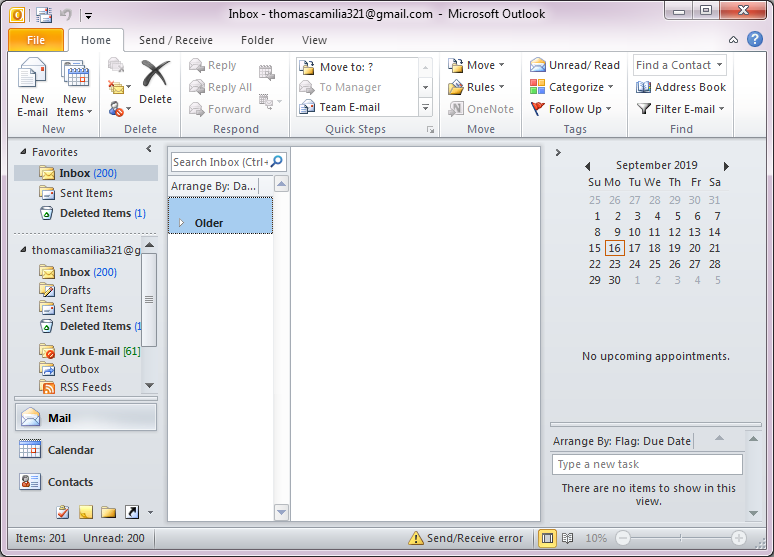
Step 2: Choose the "Option" tab.
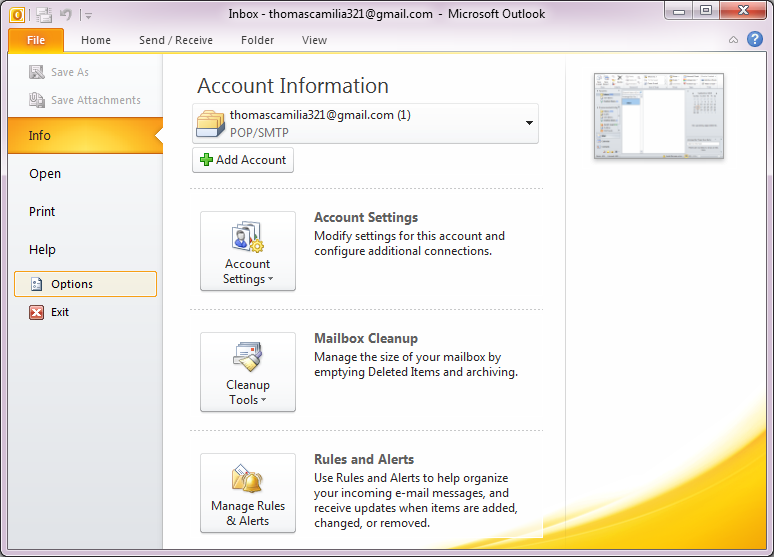
Step 3: After that open the Outlook Option tab and select the "Advanced" option.
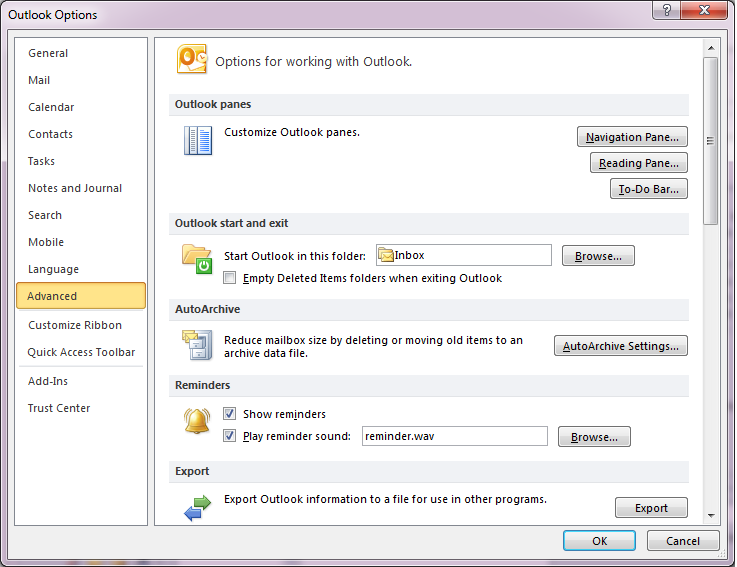
Step 4: In the Export section, click on "Export" button.

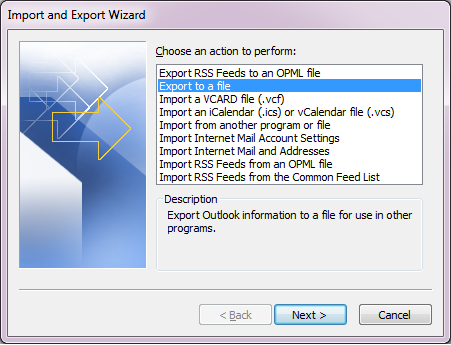
Step 5: In the Import and Export wizard, select the "Export to a file" option and click next.
Step 6: In the Export to a file Window, below the Create a file of type, select the Comma Separated Values (Windows) then click next.

Step 7: Below Select folder to export from, select the Contacts folder to export, then click Next to continue.

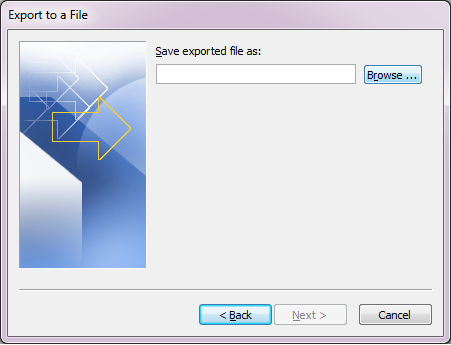
Step 8: In the save exported file, click on the browse button to select the destination path.
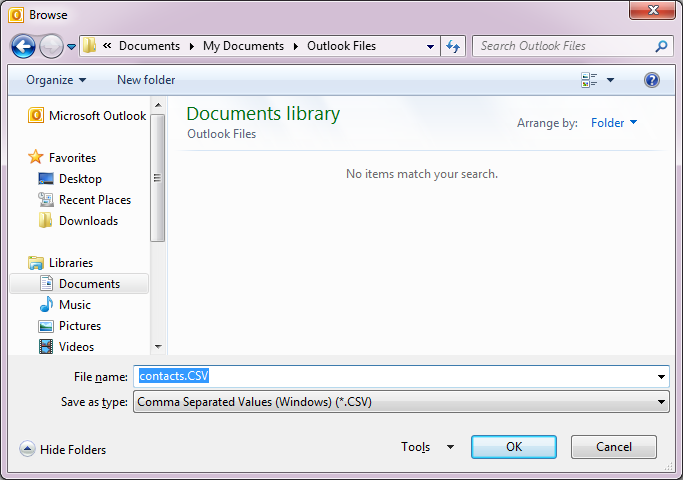
Step 9: In the File name box, type a name for your contacts file, and then click OK.
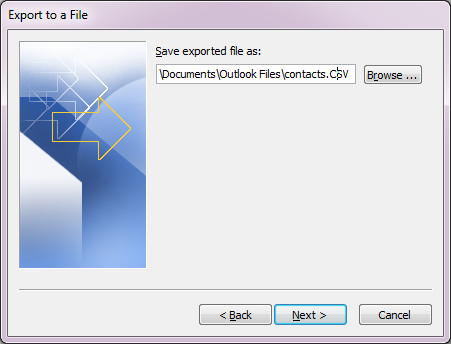
Step 10: Click Next
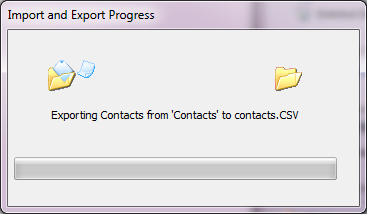
Step 11: Then click on the finish button to Start the process.

Step 12: This screenshot shows you, contacts are exported to CSV format.
Useful Links



D - 478, Sector - 7,
Dwarka, New Delhi - 75
India
Call Us
91-9555514144
You can also find us:



KDETools Software® is the Registered Trademark of KTools Software Pvt Ltd
© Copyright 2019 www.kdetools.com. All Trademarks Acknowledged.