USA/Canada: +1 (888) 844-4213
  Rest World: +91-955-5514-144
  Whatsapp: +91-955-5514-144 | PARTNERS SERVICES CONTACT US ABOUT US
USA/Canada: +1 (888) 844-4213 Rest World: +91-955-5514-144 Whatsapp: +91-955-5514-144 | PARTNERS SERVICES CONTACT US ABOUT US
Whatsapp: +91-955-5514-144 | PARTNERS SERVICES CONTACT US ABOUT US
USA/Canada: +1 (888) 844-4213 Rest World: +91-955-5514-144 Whatsapp: +91-955-5514-144 | PARTNERS SERVICES CONTACT US ABOUT US
How to Enable Application Impersonation for Microsoft Office 365
How to Apply Impersonation for Microsoft Office 365
Also please ensure that MFA (Multi Factor Authentication) should be "turned OFF" in your Office 365 admin account. All mailboxes / licenses are assigned to the Office 365 admin account.
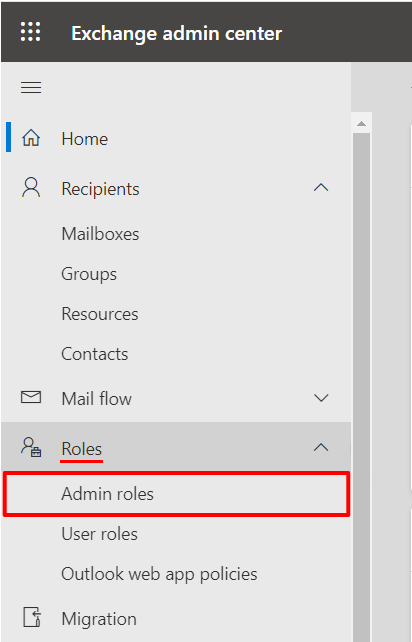
Login to your "Microsoft Office 365 Admin account" from https://www.office.com/ and go to Exchange Admin Centre (Under Admin » Exchange) » Roles » Admin Roles.

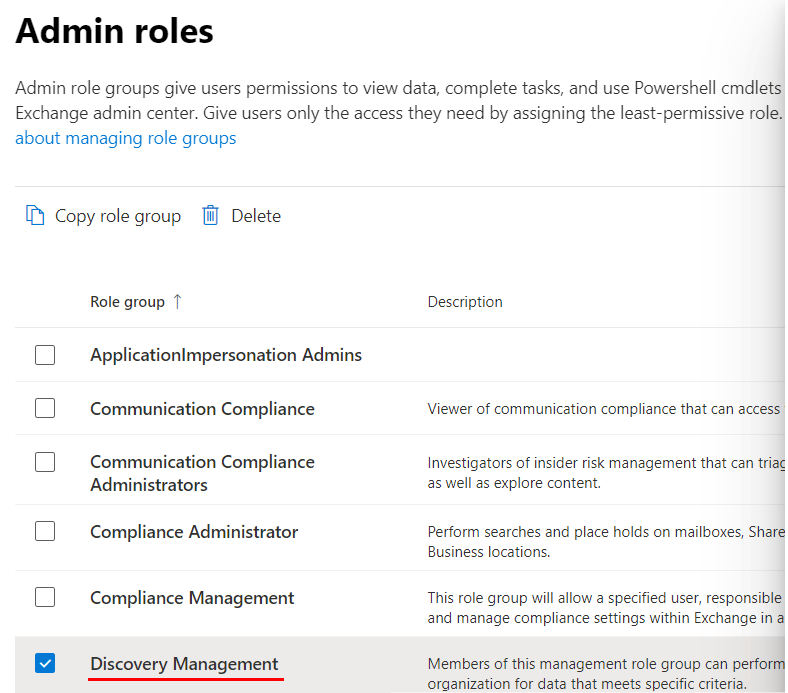
Go to "Admin Roles," Section and Click on the “Discovery Management” from the Role Group list.
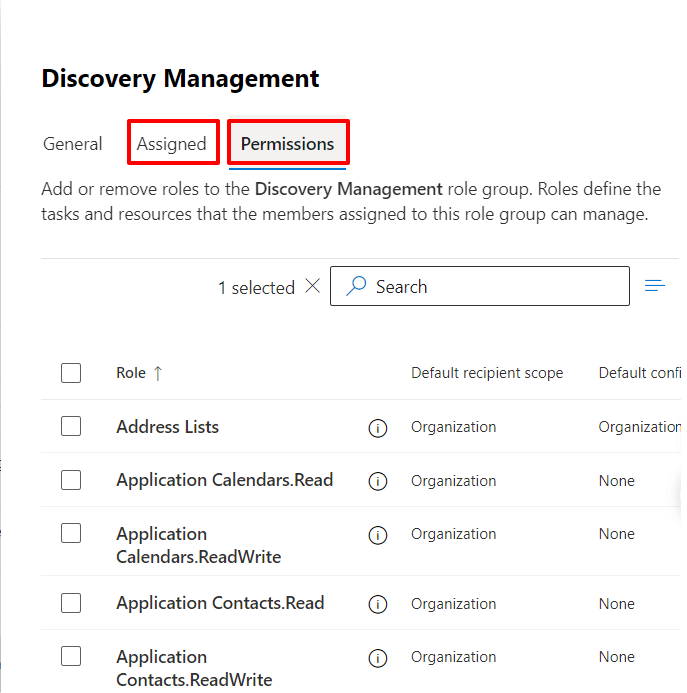
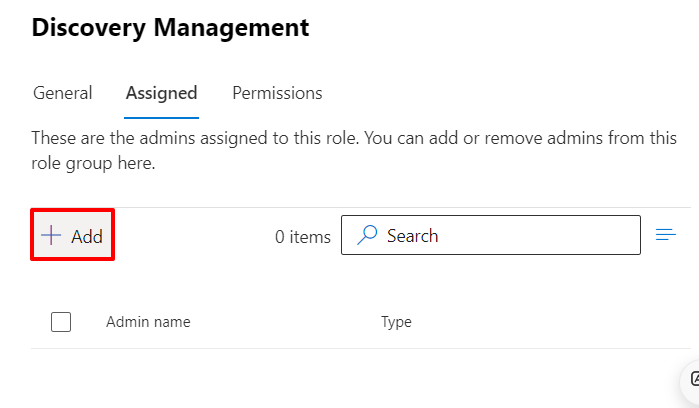
Go to "Discovery Management", Section you will “Assigned” and “Permission” option..
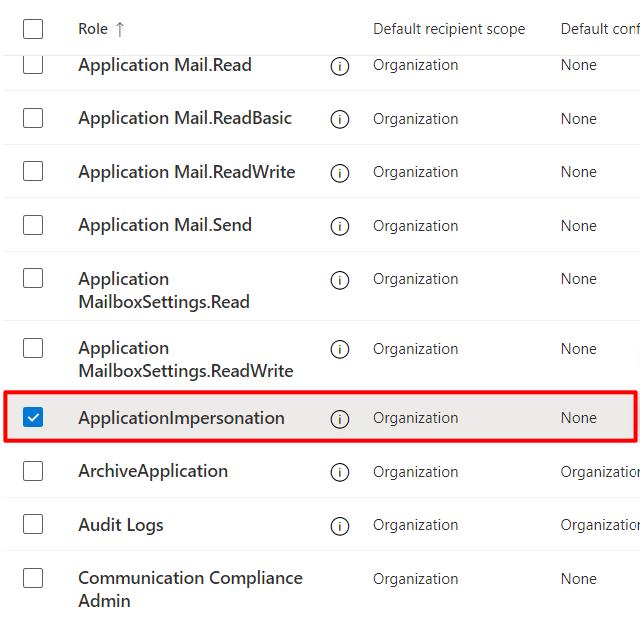
Go to "Permission" Section and select “ApplicationImpersonation” option and Save changes..
Go to “Assigned” Section, Click on "Add" Office 365 Admin email address..
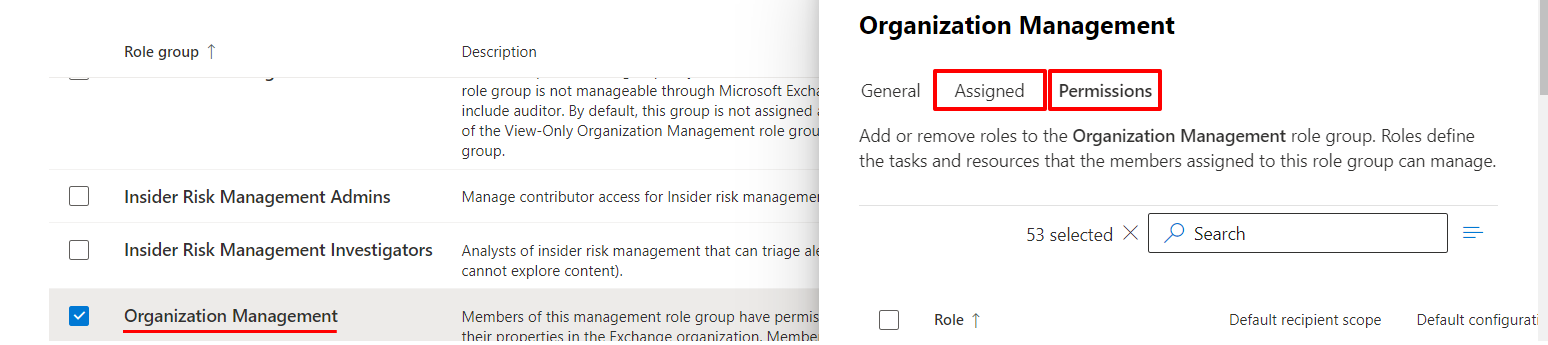
Now, Go to “Organization Management” where you will see the same options “Assigned” and “Permissions”.
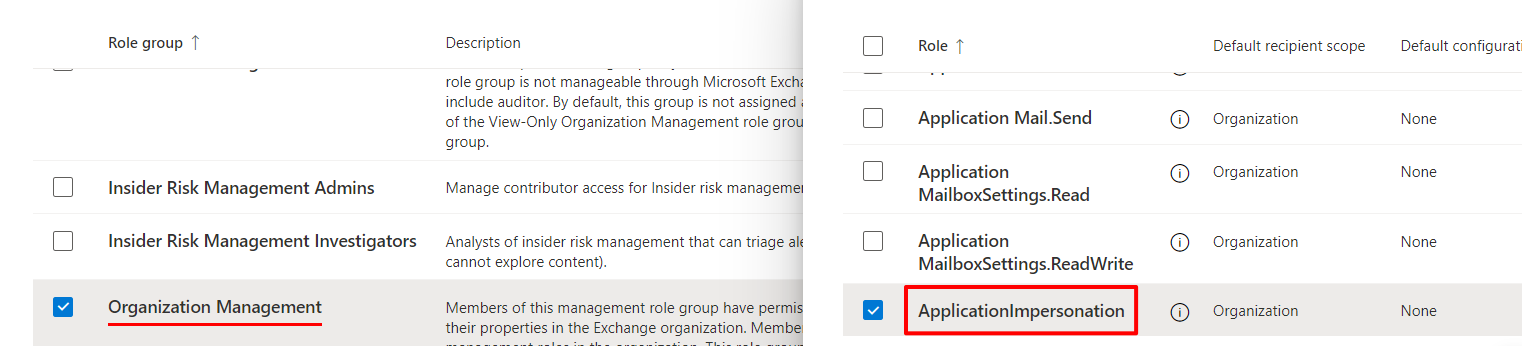
You need to do the same changes as Discovery Management. Go to “Permissions” under Organization Management and add “Application Impersonation” role.
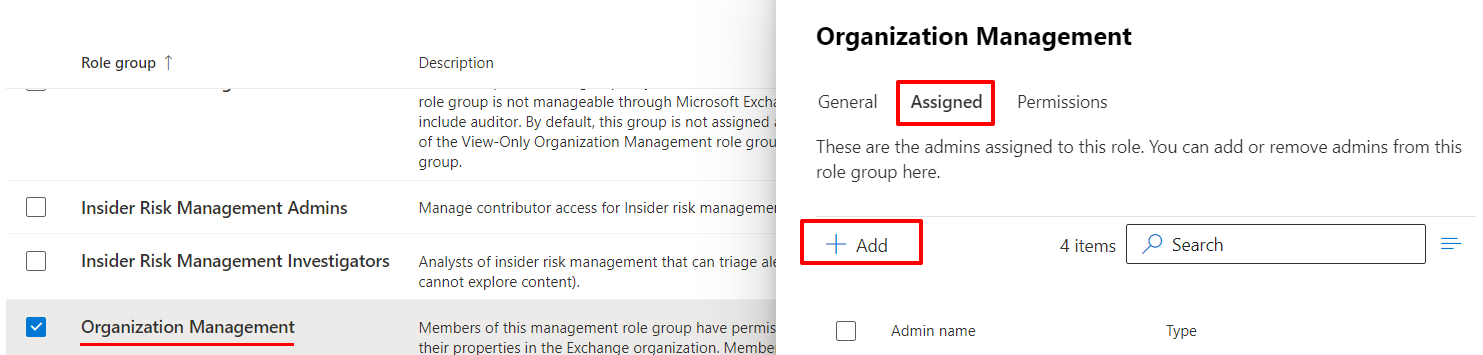
Under Assigned section, Add Office 365 Admin email address. That’s All. Now, you are good to go to perform Batch Migration..



D - 478, Sector - 7,
Dwarka, New Delhi - 75
India
Call Us
91-9555514144
You can also find us:



KDETools Software® is the Registered Trademark of KTools Software Pvt Ltd
© Copyright 2019 www.kdetools.com. All Trademarks Acknowledged.