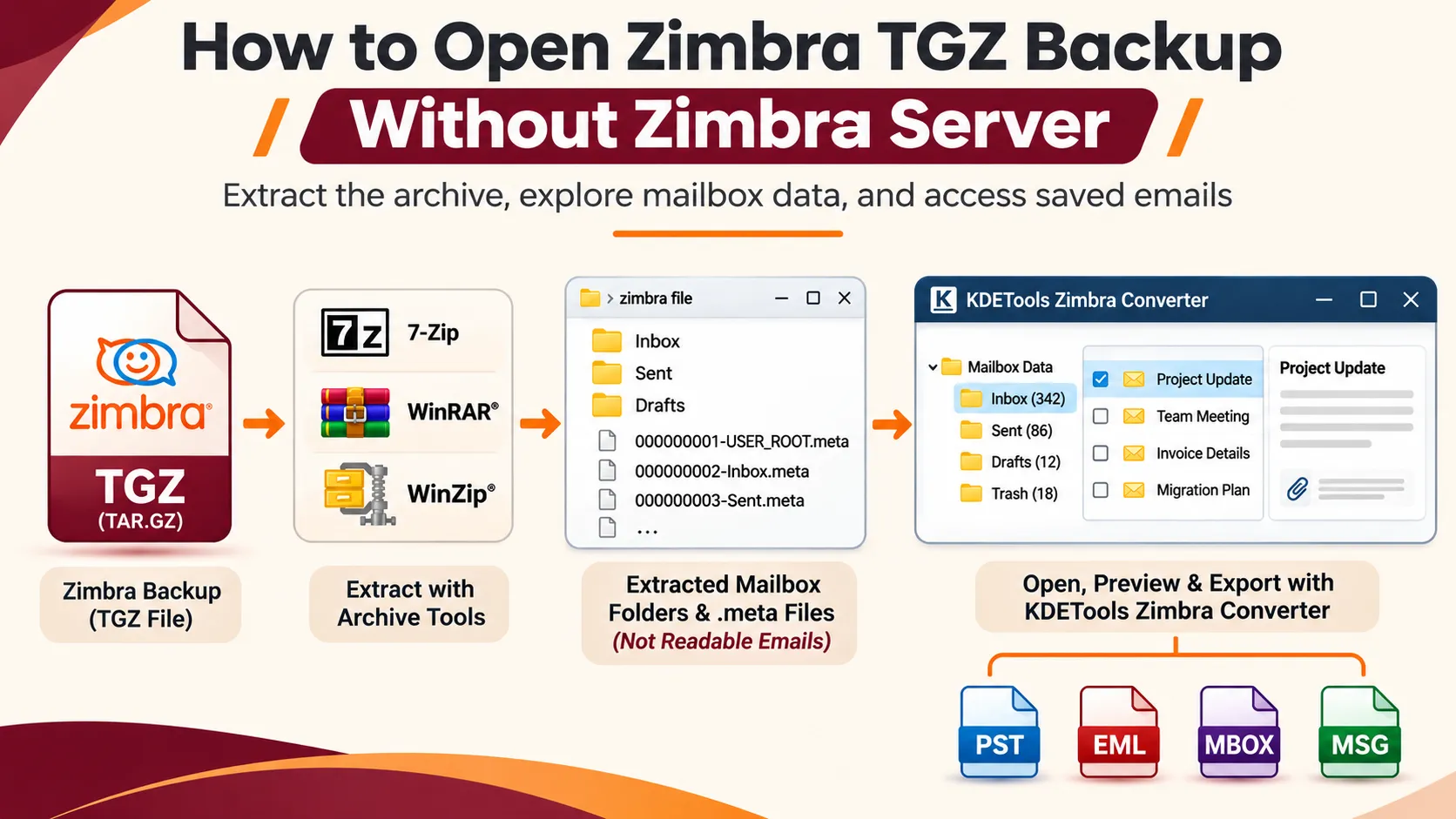
How to Open Zimbra TGZ Backup Without Server
Overview: This tutorial describes how to open a Zimbra TGZ backup file in case there is no Zimbra server at hand. This article will describe the structure of TGZ backup files, various techniques of extracting the data from mailboxes, and viewing the saved emails and attachments. In addition, you will find out how to convert a Zimbra mailbox using a Zimbra viewer/converter and how to export mailbox data to PST, EML, MBOX, and MSG formats.
Why Do Users Need to Open a Zimbra TGZ Backup Without Server?
A Zimbra mailbox backup file can hold all the business emails, attachments, folders in the mailbox, and other relevant details. However, retrieving such data becomes hard if Zimbra server is not accessible anymore. Such a scenario comes into play when the company moves to a different email system or stops using the old mail server. Having backup and unable to Open Zimbra TGZ Without Server is big problem and for this a reliable solution is required.
In case you already have a Zimbra TGZ backup but are unable to use the Zimbra account anymore, then you might be curious about how to view the emails without needing the Zimbra server.
Different approaches exist for Open Zimbra TGZ Backup Without Server if you need to analyze the backup archive, view messages contained in it, get attachments or transfer mailbox data to other email clients. You can use some archive extracting tool to review compressed backup file or employ a dedicated viewer/converter of Zimbra files to extract its mailbox data.
In this tutorial, we will describe the structure of Zimbra TGZ backup, the ways of opening it, the issues users face during its opening, and the way to export supported mailbox data to PST, EML, MBOX, MSG file format.
What Is a Zimbra TGZ Backup File?
TGZ format file for Zimbra is a compressed mailbox archive created through the Zimbra’s export feature. TGZ stands for TAR archive that is compressed by GZIP algorithm. Mailbox data export is possible using both the web interface and REST-based mailbox export features of Zimbra.
Exported archive may include email messages, mailbox folders and other metadata depending on the selected options and query applied. For example, the REST API of Zimbra allows the export of the whole mailbox in TGZ format. Additionally, some of the mailbox data like certain folders or email messages found by a certain query can be exported.
TGZ backup is not the same as usual email. It is a compressed archive with structured mailbox data and not a separate email message that can be read in an email client.
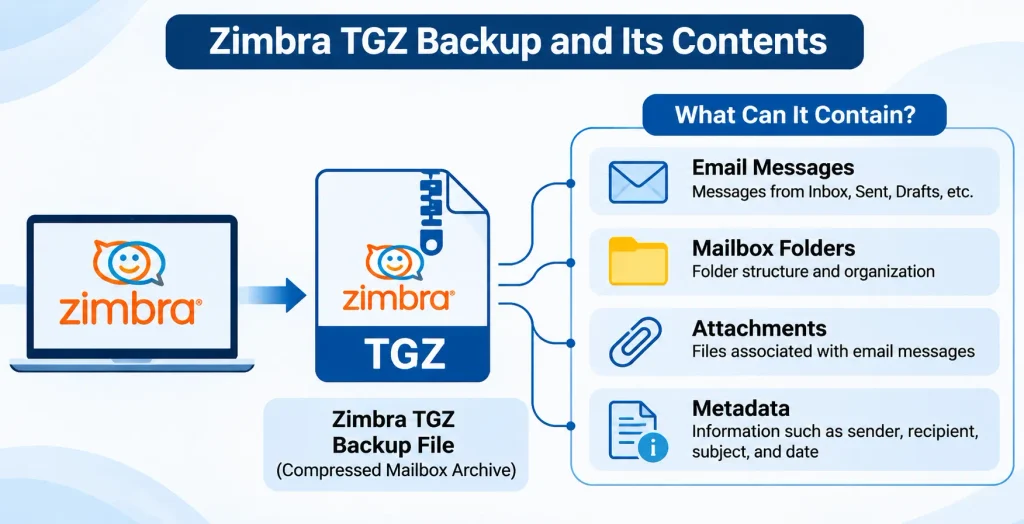
What Information Can a Zimbra TGZ File Contain?
TGZ archive contents will vary depending on how mailbox export was performed and which data was chosen.
Among types of data that are typically being exported, you can find:
- E-mail messages: E-mail messages stored in Inbox, Sent, Drafts and other exported folders.
- Attachments: Attachments connected to exported e-mail messages.
- Mailbox folders: Folder structure in the exported mailbox.
- E-mail metadata: Sender, recipient, subject and message date etc. (if present in the exported data).
- Additional mailbox items: Depending on the way the export was performed and the program used for viewing archive there can be some other supported items as well.
One should keep in mind that not all TGZ backups contain all kinds of Zimbra data.
Why Do Users Need to Open Zimbra TGZ Files Without a Server?
There are several scenarios in which one may require to access a legacy Zimbra backup without connecting to the source email system.
- Original Zimbra Server is Not Available Anymore
The organization decides to switch to Microsoft 365 or Google Workspace email systems. The administrators will have access to the old Zimbra TGZ backups for various purposes like compliance, historical purposes, etc.
- Original Zimbra Email Account Is No Longer Active
Employees will no longer work for the company, and email accounts will be closed. Or old Zimbra subscriptions are not renewed anymore. In such cases, the exported TGZ file will become the only source of the mailbox data.
- Viewing Old Emails for Business Purposes
Many businesses keep old correspondence in order to check audits, customer communication, legal requirements, and just for reference purposes. Accessing legacy TGZ file can allow users to find useful data without restoring the whole email server.
- Checking Zimbra Archive Before Moving It to Another Email System
Prior to moving the archived mailbox data to another email system, the administrators should check what exactly should be migrated. So that the migration process becomes more efficient.
Can You Open a Zimbra TGZ Backup Without a Server?
Yes. Opening Zimbra TGZ Backup Without Server is possible using a decompression software tool or a Zimbra file viewer or a program like KDETools Zimbra convertor tool. But correct approach to use will depend on how you intend to use saved mailbox data.
| METHODS | What id Does | Best suited for |
| Archive Extraction Utility | Extracts or unpacks the compressed TAR or TGZ archive. | Inspecting archive contents. |
| Zimbra-compatible viewer | Interprets supported mailbox data for viewing entire content and items. | Reading all exported emails |
| Zimbra TGZ converter | Reads supported mailbox data and exports into other formats like MSG, EML, MBOX, EMLx, OLM, and PST. | Accessing emails in Outlook Classic and Modern, Office 365 and on other email clients. |
Generic archive utility can extract or decompress the Zimbra data file, but the process doesn’t automatically restore the original Zimbra mailbox interface. In case you want to view emails with understandable subject lines, senders’ names, folders, and attachments, you should use a program that can read the exported mailbox structure.
We have described below all approaches illustrate the differences and will allow you to choose one of them.
How to Open Zimbra TGZ Backup Without Zimbra Server
Users can select of the following method as a solution as per their requisites.
TGZ archive file format uses TAR and GZIP formats for archiving Zimbra data. Hence, a standard archive extractor like 7-Zip, Winrar or Winzip can identify and extract Zimbra archive.
Here is what you need to do:
- Go to your Zimbra TGZ backup archive on your PC.
- Install or launch appropriate archive extractor.
- Right-click TGZ archive and select available extraction option.
- Choose location where should extracted files will be saved.
- Wait for the extraction to complete.
- Open the selected directory to view the extracted files and folders.
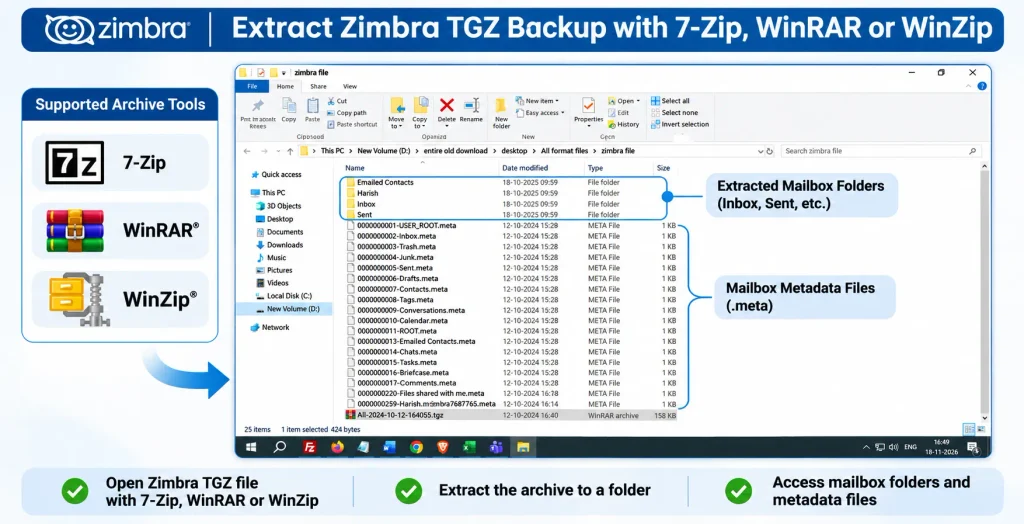
Limitation of this method: Extraction just expands compressed archive. It does not automatically show original mailbox in a way that makes it appear as a collection of well-organized emails in a Zimbra-like format.
Such an approach is helpful in situations when you need to see how archive is structured. But if your task is related to mailbox browsing or converting of emails to some other format, then such an approach might be insufficient.
Method 2: Use a Zimbra-Compatible TGZ Viewer
If you wish to read your emails rather than extracting the archive, then you should get yourself a tool which will understand the structure of the exported Zimbra mailbox.
With the help of the Zimbra-compliant viewer, one can easily analyze supported mailbox data and view email data without using any Zimbra server.
Here is what you should verify before choosing a suitable Zimbra TGZ viewer:
- Opening an initial Zimbra TGZ backup file.
- Showing email subject, sender’s name, recipients’ name and email content.
- Having access to email attachments supported by Zimbra TGZ viewer.
- Showing the exported mailbox hierarchy.
- Previewing mailbox contents before exporting or saving them.
- Providing support for the specific version of Zimbra backup used.
Different TGZ viewers provide different features. Some tools allow users to extract or show archive contents only, while others can interpret exported mailbox data and perform export as well.
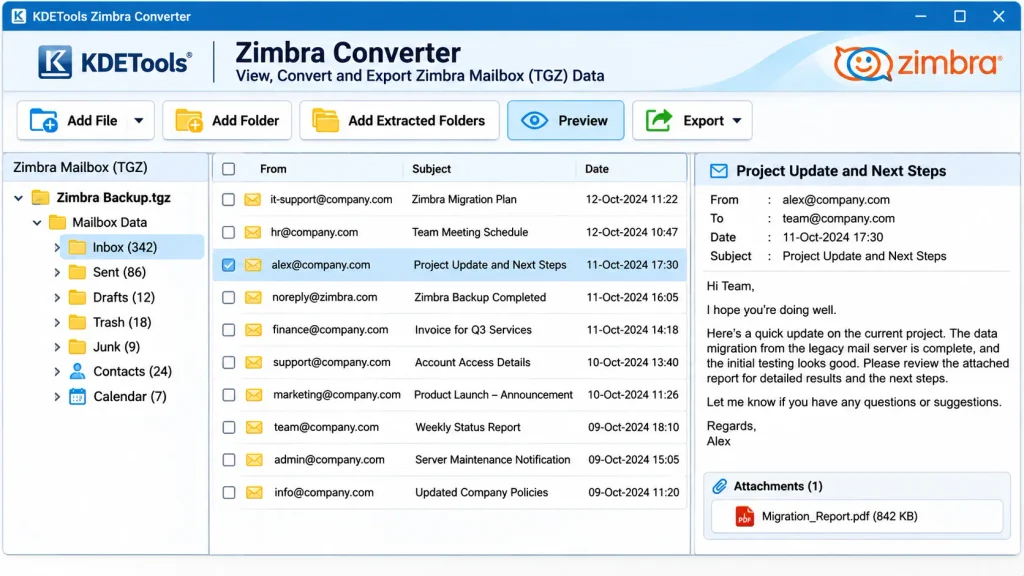
Method 3: Use KDETools Converter for Zimbra to Open and View TGZ
In case you have to use backed up Zimbra emails and make them compatible with another email application, a special converter utility will be able to offer you a more complete approach.
KDETools‘ Converter for Zimbra is intended for processing of Zimbra mailbox files, which includes also exporting of TGZ archives, and offers various saving and migration options. According to the technical data, this converter can work with the following formats: PST, EML, EMLX, MSG, MBOX, PDF, HTML, vCard, ICS, and migration destinations Office 365, Exchange Server, Gmail, Google Workspace, iCloud and Imap based account.
Unlike plain unzipping, this utility allows you to view open TGZ Zimbra mailbox and its content. It comes in handy in case you want to take a look at mailbox items to choose what to export and migrate.
Steps to open Zimbra TGZ without Server backup, following process will be followed:
Step 1: Download and Install KDETools for Zimbra
Download Zimbra TGZ Viewer from the official website and install it on a Windows PC. Once installed, launch viewer program.
Step 2: Add Zimbra TGZ Backup File
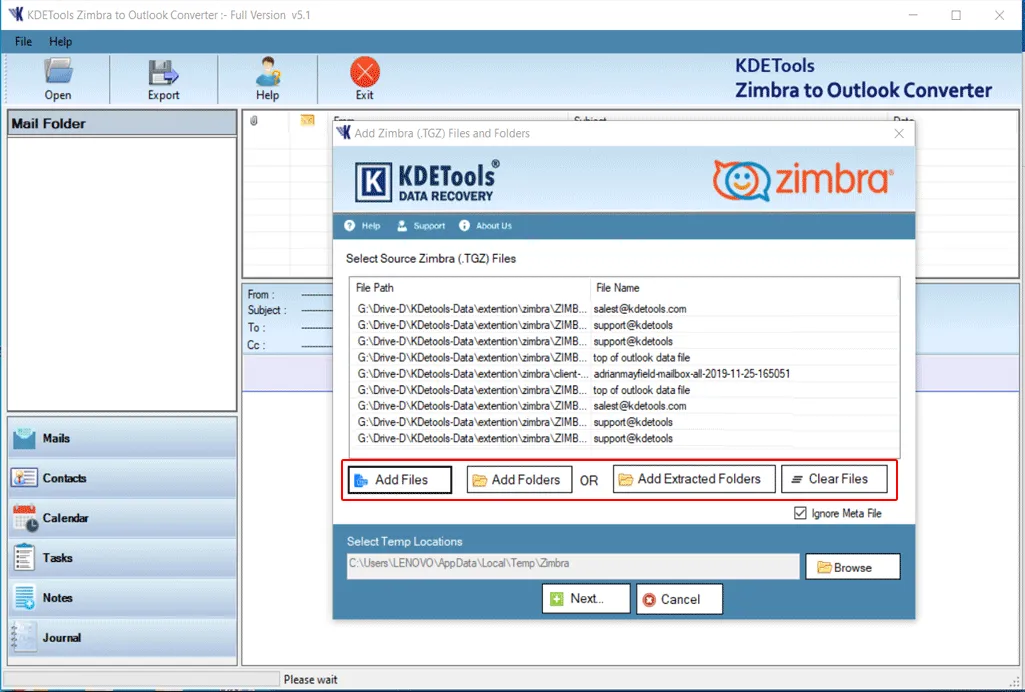
Click on add TGZ will take you to browse for the Zimbra TGZ backup, now add TGZ file or multiple TGZ files. After adding entire emails will be loaded and you can view Zimbra TGZ backup.
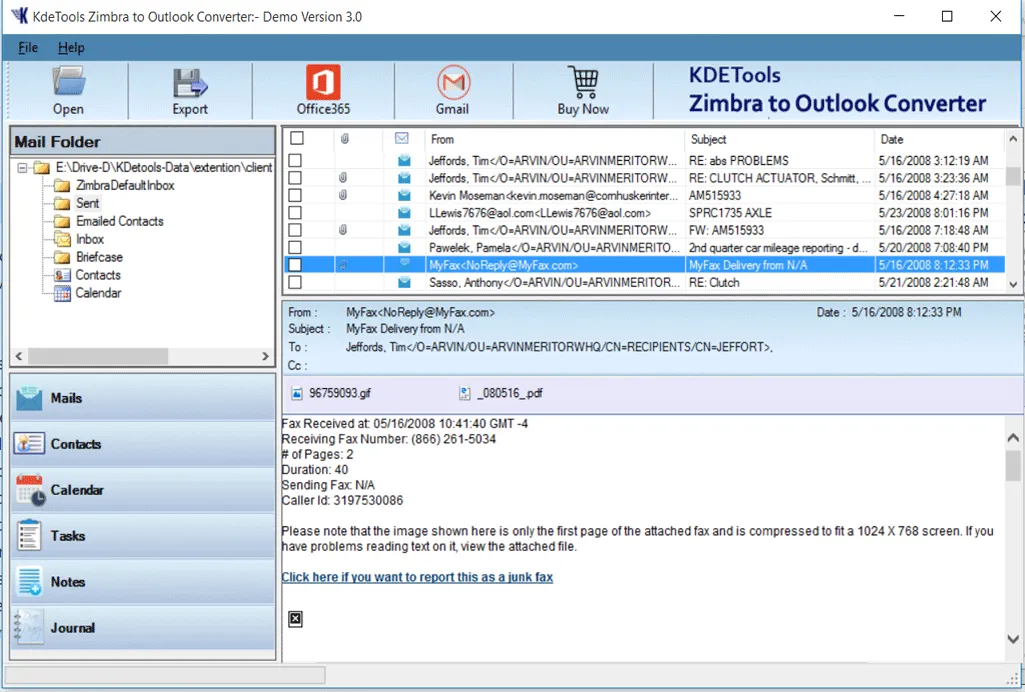
All emails are open and you can also export to various formats such as document formats, email formats and also can migrate into IMAP based account, Office 365, Microsoft 365, Google Workspace, iCloud and so on.
Which Output Format Should You Choose?
So the appropriate output format depends on how you want to access and use exported Zimbra mailbox data.
| Requirements | Available Formats Documents and Email |
| Access supported email data in Microsoft Outlook. | PST email format Outlook |
| Save email messages separately in folder. | EML format format |
| Work with MBOX-compatible email clients. | MBOX email format |
| Save into another Outlook message format. | MSG email format |
| Open and share email content as documents. | PDF document format and HTML |
| Export supported contact information | vCard format |
| Export supported calendar information | ICS file format |
Common Problems When Opening a Zimbra TGZ Backup
There might be some problems in opening or displaying your TGZ file. If you are looking for ways on how to Open Zimbra TGZ Backup Without Server, here are some considerations that you should take note of.
TGZ File Not Being Recognized
Your TGZ file might be incomplete, improperly downloaded or even damaged. Make sure to check the filename and extension of the file and make sure that you download the file properly.
Extraction Fails of Archive
Your extraction utility may indicate an error with the TGZ file if the TGZ file is either damaged or incomplete. Extract separately a copy of your backup and do not modify the original TGZ file.
Files Extracted Are Not Legible Emails
This is not an indication that your backup file is corrupted. An ordinary archive tool will extract the container file but will not decipher the Zimbra mailbox format. Use a trusted program like KDETools for Zimbra designed to parse Zimbra exports if you want to read the emails.
Missing Some Emails or Folders
All emails or folders might not have been exported during the original export. The export facility in Zimbra is capable of performing queries and selections, which means that the range of the original export will play a role in the availability of data in the backup.
Before concluding that the backup has missing data, check the settings for the original export.
Attachments Cannot Be Accessed
Accessibility of the attachments is dependent on whether the attachment data is available in the backup and whether the application is capable of interpreting the email messages.
Best Practices before Convert or Open Zimbra TGZ without Server
Following steps should be considered prior to handling an important mailbox archive:
- Preserve the original TGZ file untouched.
- Make sure you use the copy of TGZ for import/conversion.
- Make sure you know the size of your file beforehand.
- Be sure your destination hard drive has enough free space.
- Make sure that you use reliable software and scan downloaded programs before installing.
- Make sure the converted emails and attachments will be verified later.
- Be sure you do not remove the original backup until the necessary data can be accessed.
This is especially the case when handling huge business email boxes or archives containing historical emails.
Frequently Asked Questions
Can I Open Zimbra TGZ Without Server or installing Zimbra?
Yes. You are able to open the archive using the appropriate software. If you want to view the mailbox data in more comfortable way or transform the mailbox into another format you might need Zimbra compatible viewer/converter.
Can WinRAR or 7-Zip open a Zimbra TGZ backup?
Yes. All of these programs capable of working with suitable TAR/GZIP archives. However, extraction of Zimbra TGZ file will not automatically show its content in the form of email mailbox. email data from TGZ Zimbra archive require a special program to be viewed such as KDETools’s for Zimbra.
Can I read Zimbra emails directly from a TGZ file?
No, TGZ file is an archive and not an ordinary email message. In order to view content you have to extract the archive or use a compatible software that will help you to open Zimbra TGZ without Server.
Can I access Zimbra attachments without the original server?
Yes, but there needs to be the necessary attachment information within the backup, and method for extracting/converting this data will need to understand how to interpret the data.
Can I open Zimbra TGZ backup in Microsoft Outlook?
No, Outlook is not meant to open a Zimbra TGZ backup archive as a native mailbox. However, in case you need to access supported emails using Outlook, it is reasonable to convert Zimbra TGZ backup to PST.
Is an Internet connection required to open a Zimbra TGZ?
Yes, It would not be necessary to have access to the original Zimbra server in order to view/download existing archive or convert it with the help of locally installed software. Internet access might still be required for downloading software, activation, and other tasks related to application/software’s specific functions and setup etc.
Does extracting Zimbra TGZ file is same as converting it?
No. Unpacking compressed archive is extraction while the conversion means the interpretation of supported mailbox data to export it to other formats like PST, EML, MSG, MBOX, etc.
Can I convert and extract multiple Zimbra TGZ files at once?
Among the features of KDETools’ for Zimbra, there is batch Zimbra conversion and adding multiple Zimbra files. Please ensure to check the current product version and input requirements prior to adding multiple backups.
Is it possible to open Zimbra TGZ in Outlook 2019 and 2021?
Yes, it is possible using KDETools Zimbra TGZ to PST converter to open Zimbra TGZ in Outlook 2019 and 2021 and is easier like operating a mobile to open emails.
Conclusion
Zimbra TGZ Backup can be useful even in absence of Zimbra server and mailbox. Process to open Zimbra TGZ without server will depend on the aim, which can be analyzing TGZ backup, opening emails stored in it, or transferring supported mailbox information to another email client software.
It is possible to use any Zimbra TGZ extractor program to extract TGZ archive. However, it cannot provide access or view of emails and content. Use of Zimbra viewer will be helpful in the interpretation of supported mailbox information. Use of a right TGZ viewer program also offer possibilities to not only open emails but to export TGZ emails in PST, EML, MSG, MBOX, PDF, and HTML formats.
If you have any question or problems related to Zimbra TGZ backup - then simply do contact the support for free consult and assistance.